# User Setup: Connect Your Quicklizard Account
Who this is for: anyone who wants to use Quicklizard from Claude.
How long it takes: about a minute.
On Claude Pro or Max, without an organization?
Nobody has to add the connector for you — you can do it yourself in one click.
Open our Connect Quicklizard MCP to Claude page, choose US or EU to match your Quicklizard account, and click Connect MCP. Claude opens its add-connector dialog with the name and URL already filled in, so you only have to confirm.
The connector then appears under Customize → Connectors — skip Step 1 and carry on from Step 2.
In a Team or Enterprise organization, and the connector isn't there?
An organization owner has to add it before it appears for you, and only they can do that — the one-click page above will not make it available to your organization. If it is missing from the list in Step 1, send your Claude administrator the Admin Setup guide.
# Step 1 — Find the connector
In Claude, go to Customize → Connectors and look for the connector:
Quicklizard US— if your Quicklizard account is hosted in the US.Quicklizard EU— if it is hosted in the EU.
If you see both, pick the one matching the region you log in to Quicklizard through. Picking the wrong one will fail at sign-in, because your user does not exist in the other region.
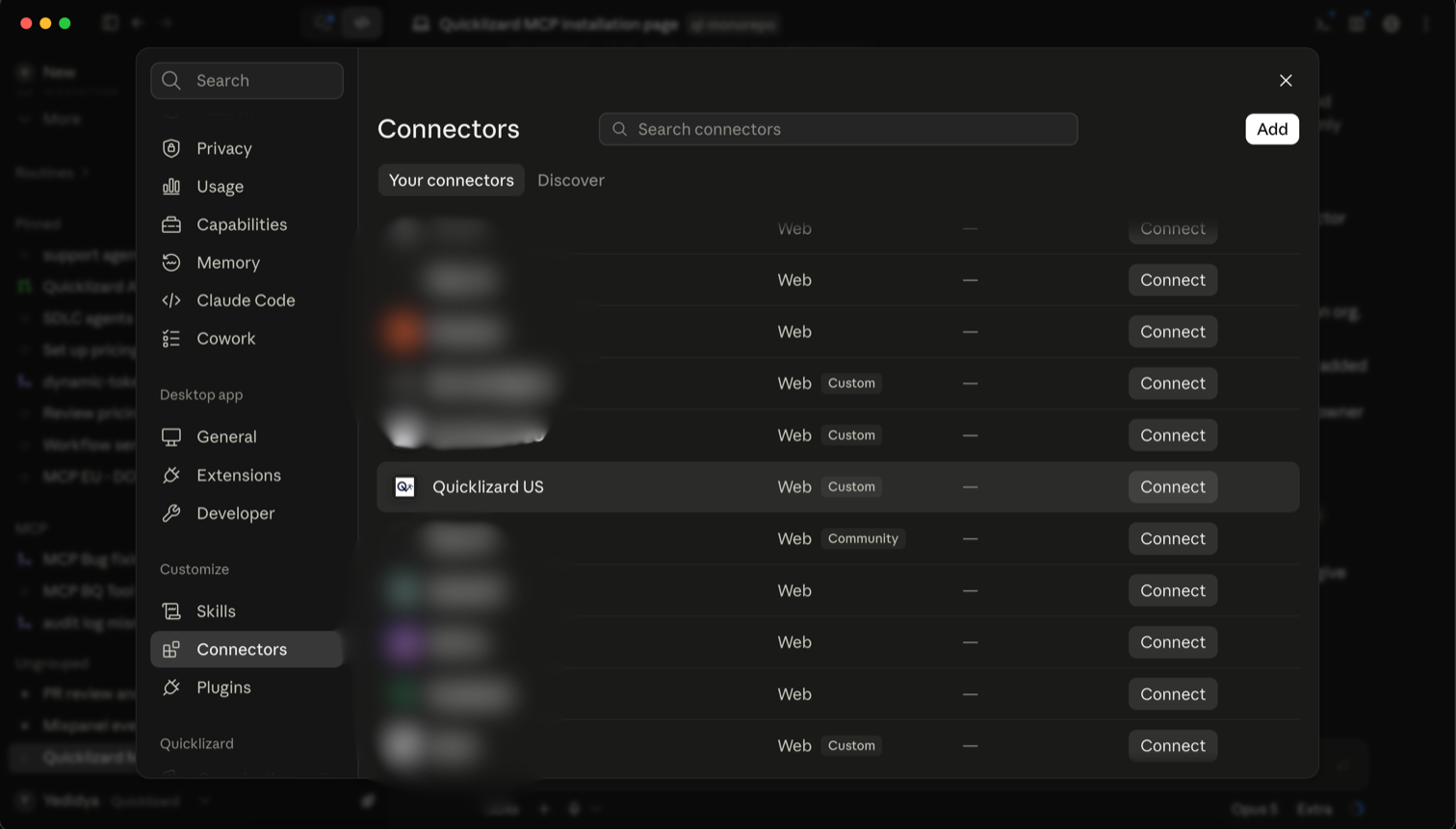
# Step 2 — Click Connect and sign in
Click Connect. A Quicklizard sign-in window opens. Enter your normal Quicklizard email and password — the same ones you use for the Quicklizard web app.
Quicklizard then shows you what Claude will be able to do — read your pricing data and run pricing tools for the products and channels you are authorised for. Click Authorize to finish connecting.
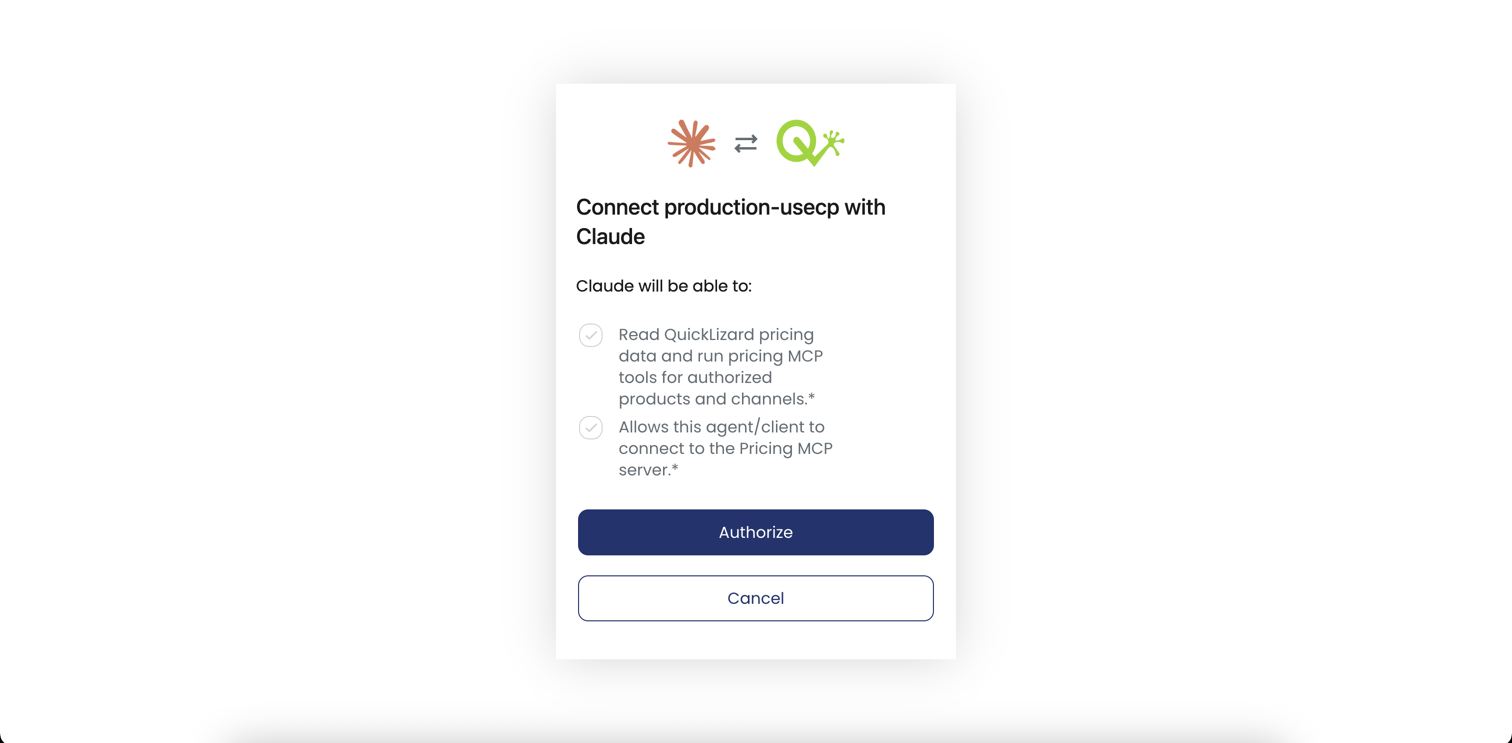
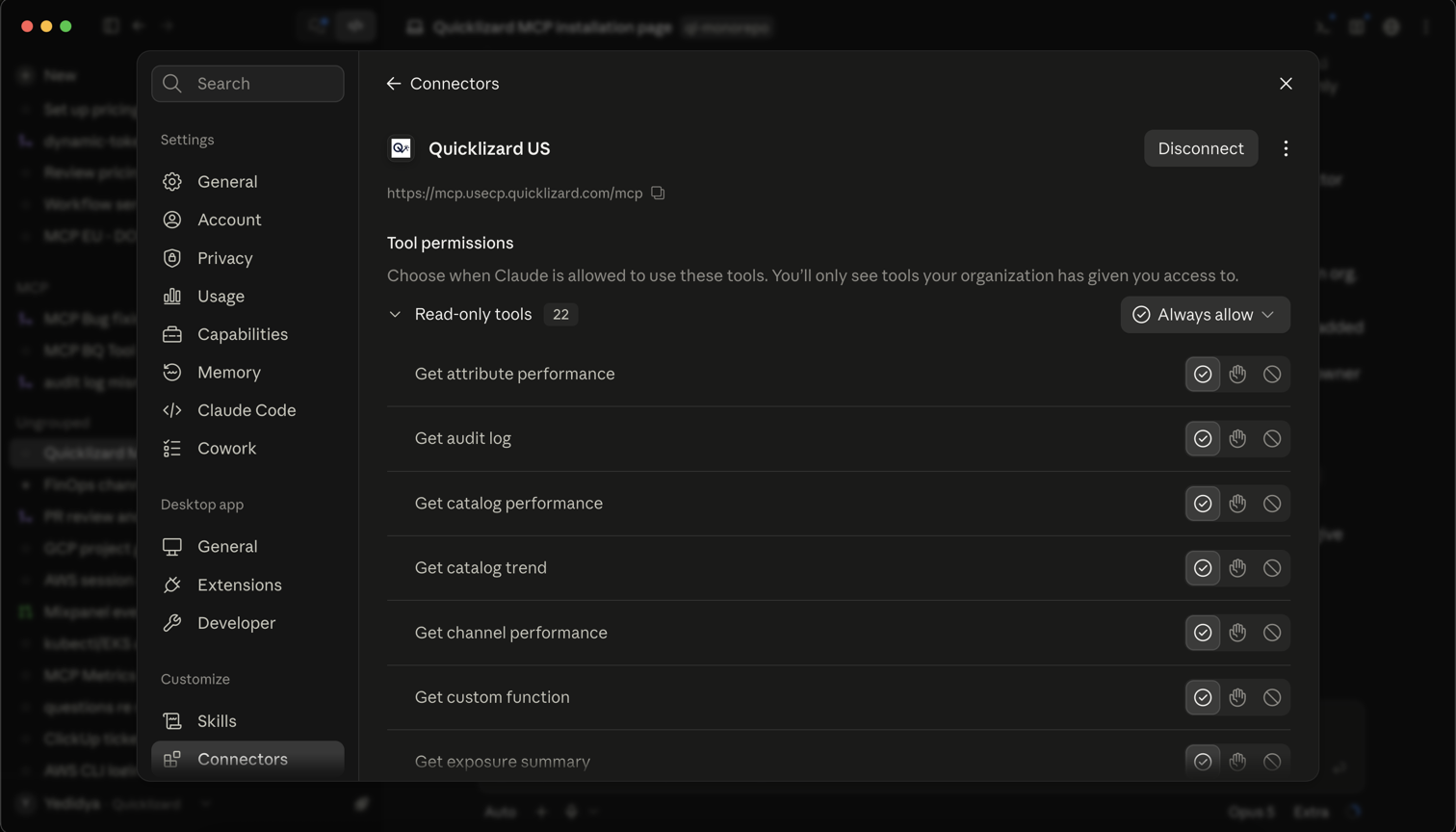
Once it succeeds, the connector shows as connected, with its URL and a Disconnect button.
# Step 3 — Turn it on in your conversation
Being connected is not quite the same as being switched on. In a chat, click the + button at the bottom left of the message box (or type /), hover over Connectors, and toggle Quicklizard on.
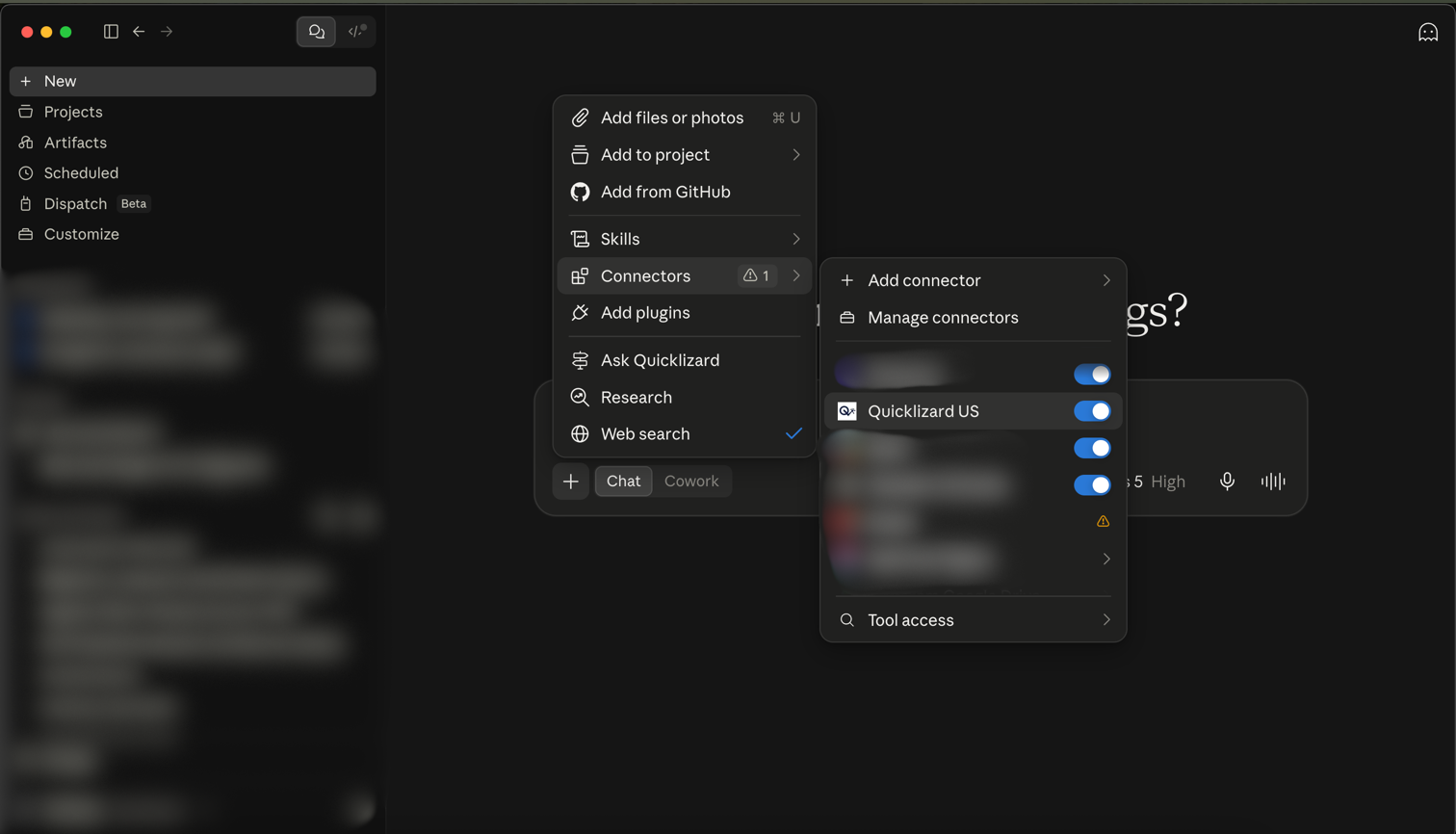
# Step 4 — Approve the tools ("Always allow")
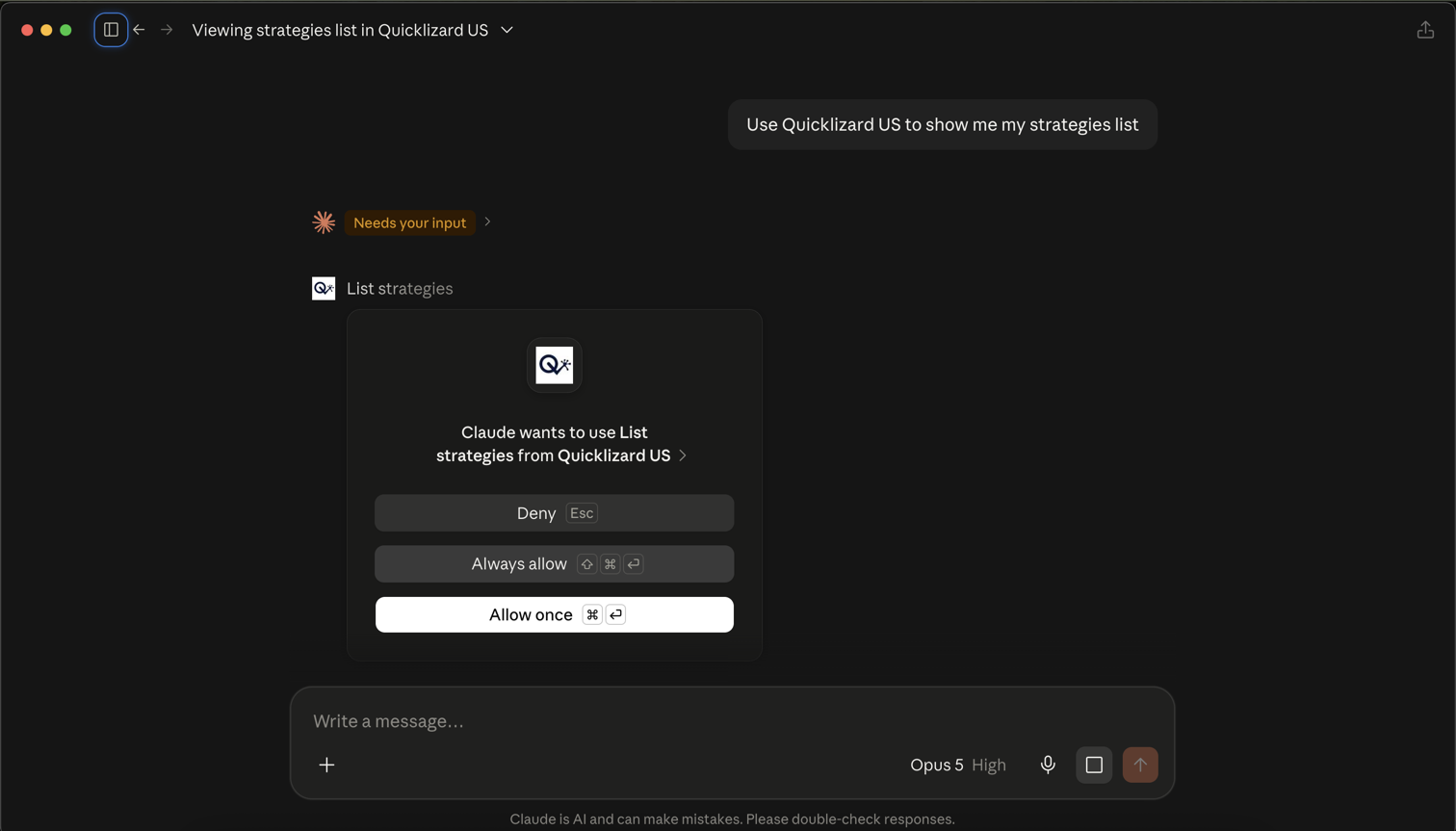
The first time Claude actually uses Quicklizard, it asks permission to run a tool. The prompt names the tool and offers Deny, Always allow and Allow once.
Choose Always allow. If you pick Allow once you will be asked again on every single lookup, which quickly becomes tedious — Claude often calls several tools to answer one question.
This is safe to do here: every Quicklizard tool is read-only. None of them can change prices, strategies or any configuration, and each one is limited to the data your own Quicklizard user is permitted to see.
# Step 5 — Check that it works
Ask Claude:
What Quicklizard accounts and channels do I have access to?
Claude should come back with the accounts, product sets and channels tied to your login. That confirms the connection is live and correctly scoped. If you get an error instead, see Troubleshooting.
# Keeping the tool list up to date
We add and improve Quicklizard tools regularly. Claude caches the list of tools it learned when you first connected, so new capabilities will not appear on their own.
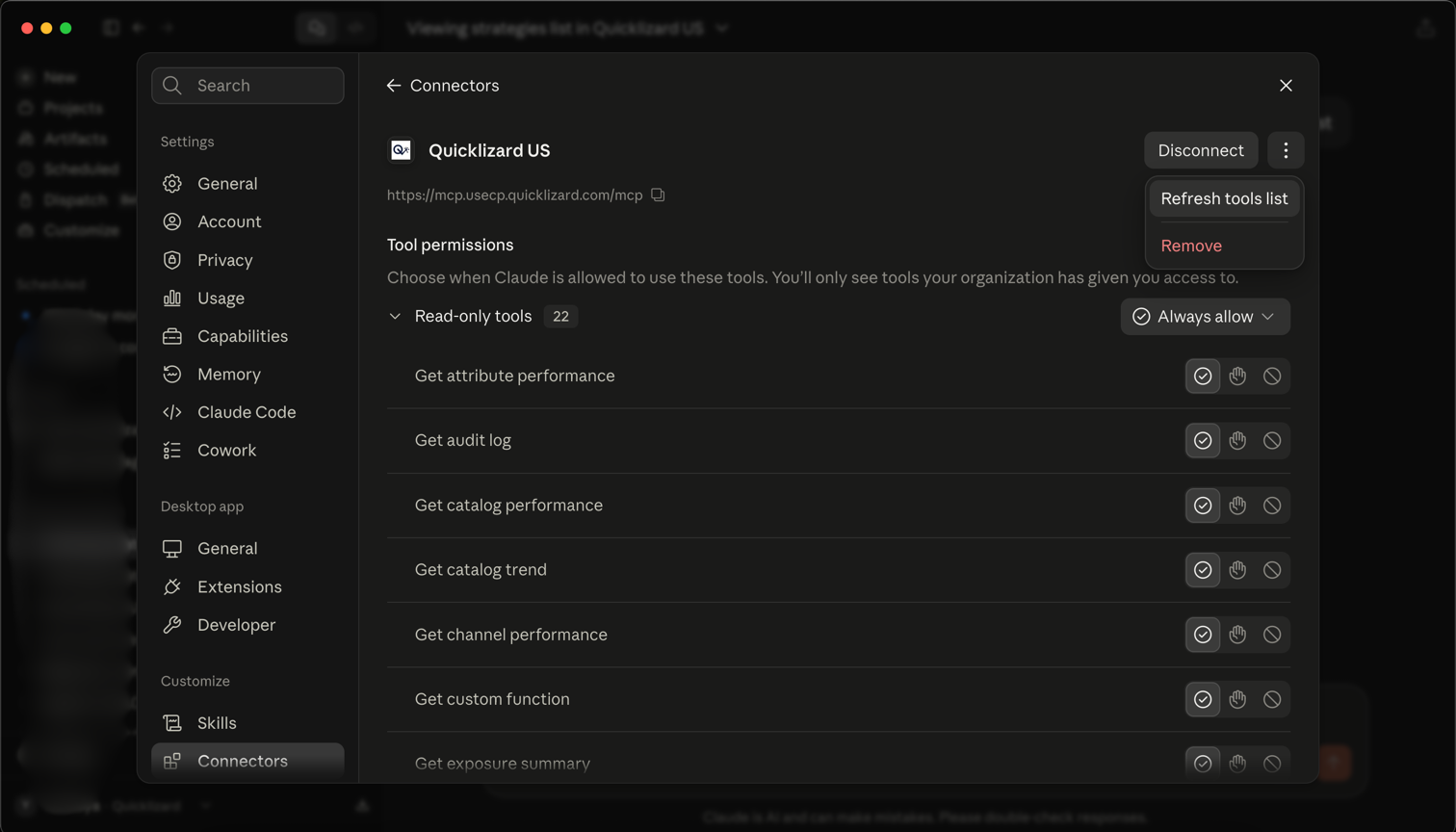
If Claude says it cannot do something you expected, or you have been told about a new feature you cannot see, open the connector under Customize → Connectors, click the ⋮ menu next to Disconnect, and choose Refresh tools list. It takes a second and pulls in everything new.
It is worth doing this every few weeks, and any time you hear that we have shipped something new.
# What you can see
Claude sees Quicklizard through your account, so it is limited to the same accounts, product sets and channels you get in the web app. If a colleague can pull up a report you cannot, that is a Quicklizard permissions difference, not a Claude one — talk to whoever administers your Quicklizard users.
# Next
- Common Use Cases — what to actually ask, with example prompts.
- Troubleshooting — if something is not working.